
Before you start
| Requirement | Check |
|---|---|
| Website | Connect Search Console and open the correct website. |
| Plan | Free includes the weekly account report to your own address. Pro adds custom scheduled reports and external recipients. |
| Email service | If Email is off appears, scheduling is unavailable. |
| Saved report | A PDF uses the saved report and its settings. Save before previewing it. |
Create a scheduled report
- Open Emails for the website, or open its report and choose Share → Make email report.
- Choose Create report and give it a Name.
- Select the Website and Report. Check these before selecting recipients.
- Under Report language, keep Use account language (default) or choose English or Suomi for the report. That report’s language also applies to its shared link and PDF.
- Choose the Data period, Compare to, Interval, send day, Time and Time zone.
- Select the content and recipients. Choose Save or Create report.
- Reopen the saved row and verify the next scheduled date.
Creating or enabling a schedule authorizes future emails. Previewing alone sends nothing.
| Setting | What it controls |
|---|---|
| Data period | The dates included in the numbers, such as Last 7 days. |
| Interval | How often the report is sent: Daily, Weekly or Monthly. It is separate from the data period. |
| Time zone | The zone used by the schedule. Delivery times are approximate. |
| Only when there is something to report | Skips a quiet report. |
| Include my notes | Includes notes eligible for the selected audience. In an owner’s site report, it can also show new Search Console issues detected during the report period. This issue list is private to the owner. |
| Show my brand | Uses the account’s available branding. |
The first website on a new account normally enables a weekly report to the owner’s address. Its first Monday is at least 36 hours later. Check Emails for the actual schedule.
Add recipients
- Open the email report and its Recipients field.
- Type the address into Add an email address and press Enter. Check the spelling before you save.
- Save the report and reopen Recipients. An address marked Active will receive the next scheduled report.
Add only people you have permission to email. You can add up to 10 external recipients per website. Choose recipients for each report separately. Each message includes a link to stop future emails.
Preview and download
- Save the report.
- Choose Preview.
- If available, set Whose copy to You or Recipients.
- Check the website, dates, comparison, language and included sections.
- Choose Download HTML to save the email preview.
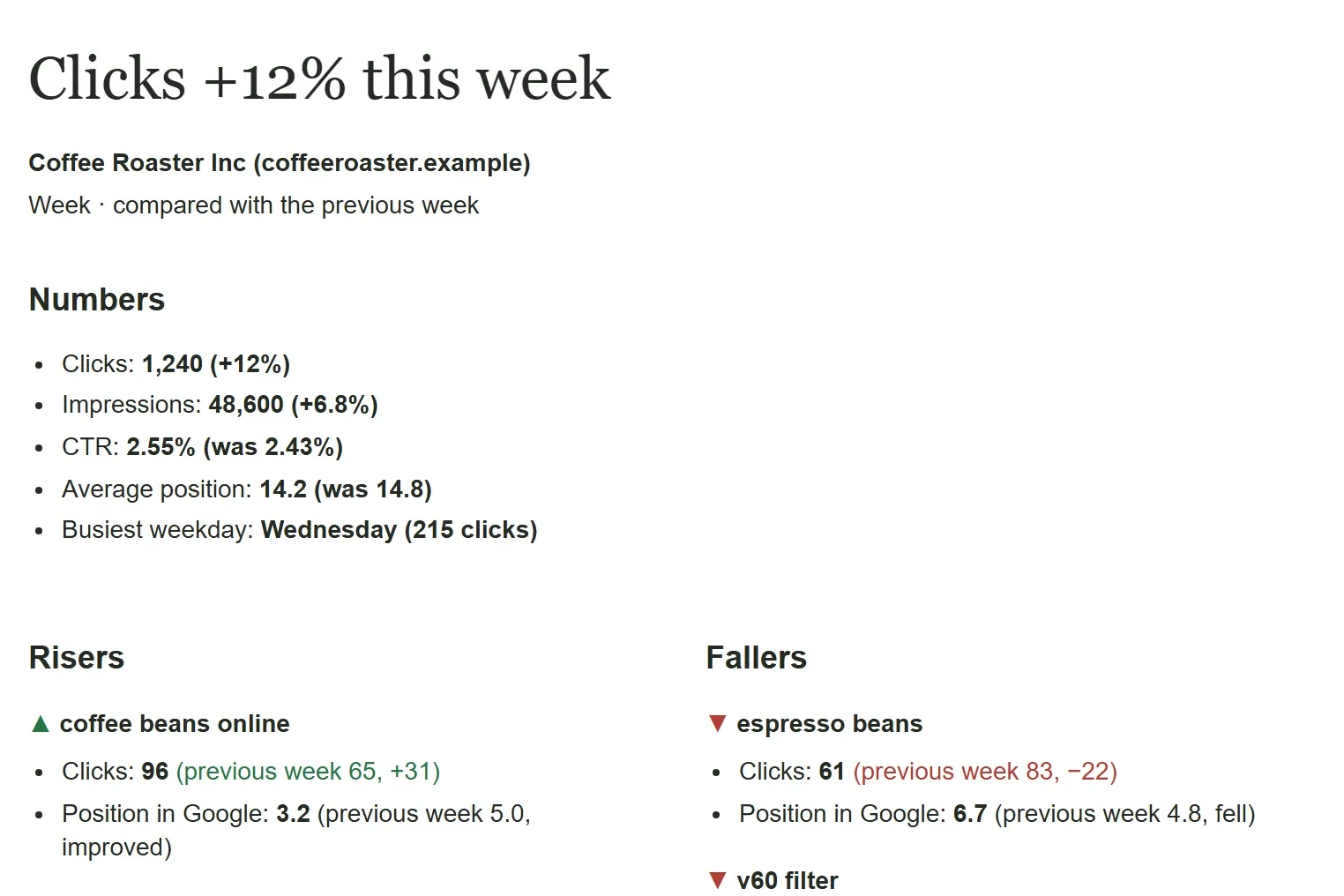
The image is an example email, not the schedule settings. Send me a test sends an email to you; it is separate from Preview. Check your inbox before repeating a test after an uncertain result.
Attach the saved report as a PDF
- Enable Attach the full report as a PDF, when the option is available.
- Save the email report.
- Open Preview → PDF and check the output.
- Choose Download report PDF to save it.
| Email summary | PDF attachment |
|---|---|
| A short email assembled from the selected email content. | A print rendering of the selected saved report. |
| Uses the selected report language. | Uses the report’s saved titles, modules and styling; email language does not translate user-written report text. |
| Easy to read in an inbox. | Keeps the visible saved modules, their order and applicable report/module filters, using the scheduled dates. |
The PDF follows the saved report configuration. It is not an unrestricted export of every row: large tables can be capped, and print layout differs from the screen. The renderer tries up to 500 rows, then a smaller 100-row rendering if needed. Check the PDF preview before sending it to clients.
Private notes are excluded from a recipient’s PDF. To preview a recipient’s PDF, save the report with at least one Active external recipient. If the renderer fails, the email can still go out with a notice that the PDF could not be attached.
Choose traffic and connection alerts
- Open Emails under the sidebar’s Settings heading.
- In Alerts, switch each alert type on or off.
- In Alerts per website, choose the websites to include.
- Wait for saving to finish, then reopen the page and check the switches.
| Alert | What it reports |
|---|---|
| Google access ran out | Google authorization needs reconnecting. |
| A website has an error | Access to a website has been lost. |
| Numbers stopped coming | The website’s numbers are a week behind. |
| Sudden drop | Clicks fell across the website. |
| Positions dropped | Queries lost positions. |
| New Search Console issues | Google reported a new sitemap or URL inspection problem. Off by default. |
To receive the new-issue alert, the account owner turns on New Search Console issues and leaves alerts on for the relevant websites. New issues detected after enrollment go to the owner’s own address. External traffic-alert recipients and scheduled-report recipients do not receive this alert. A later recovery can appear in Notes.
Scope: a website switch changes both its traffic alerts and its inclusion in All websites account reports. It does not silence account-level connection alerts. All on and All off apply to every website matching the current list/search, including other pages of that list.
For one website, open its Emails → Alerts for this website switch. On an eligible Pro account, Traffic alerts also go to lets you add external recipients for that site’s traffic alerts. Each scheduled report has its own recipient list.
Switches save individually. If the app says Couldn’t save or restores the old value, do not assume the alert setting changed.
Verify delivery or stop a report
| Display | Meaning and next step |
|---|---|
| Next | The next scheduled attempt; check the zone. |
| Last sent | The service sent the message; verify arrival with the recipient if needed. |
| Your copy | The status refers to your address, not every recipient. |
| Waiting to send | Queued; avoid creating a duplicate schedule. |
| Skipped | Read the reason, such as unready Search Console data or no changes. |
| Sending failed | Check the reason and address before retrying. |
| Active | The address can receive scheduled messages. |
| Stopped | The recipient used the link to stop these emails. |
| Can’t be reached | Delivery to this address is blocked. |
Switch the report off in Emails to pause future sends. Delete removes the schedule after confirmation. Stop these emails in a received report stops that subscription. Downloading HTML or PDF does not change delivery settings.