
Add a note
A note belongs to a website in your account. Leave Keyword empty for a site-wide event. To attach it to a search query, type the beginning of that query and choose it from the suggestions. When you add a note from a query’s history, that query is already selected.
- Leave Edit mode.
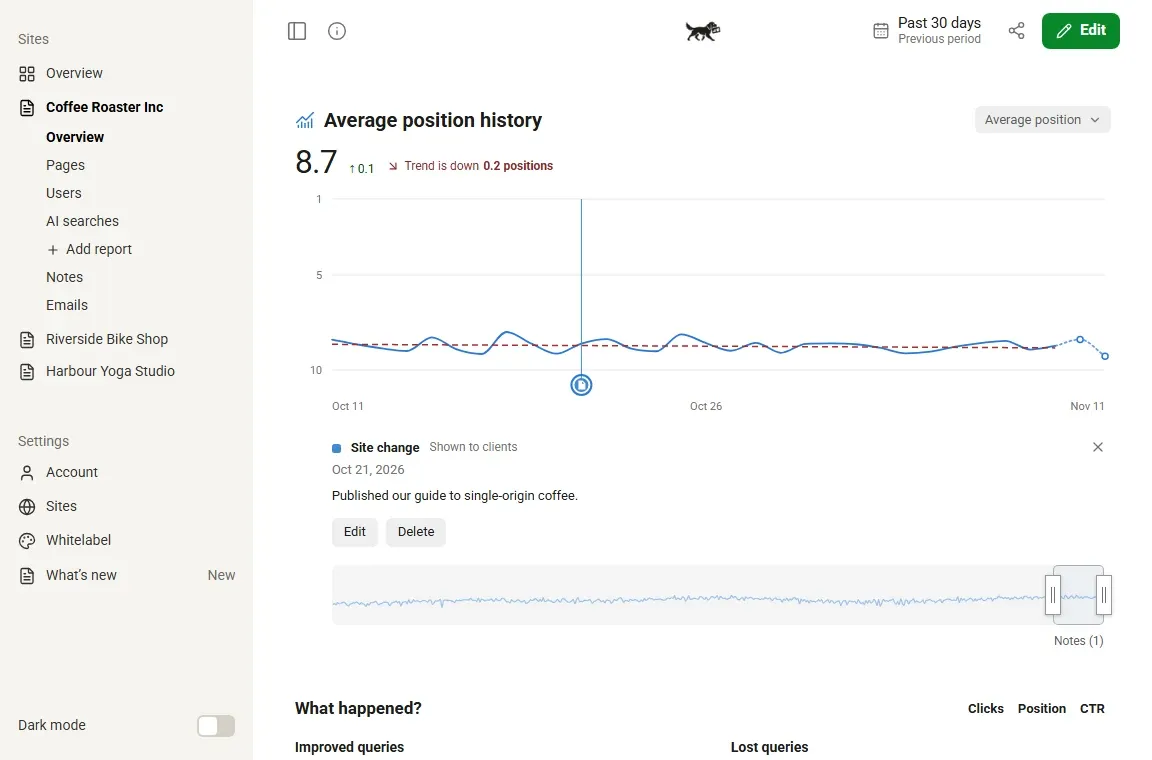
- Open the website’s Notes page, or a history chart with Show notes enabled.
- Choose + Add a note. On a chart, you can first select the relevant day.
- Write the note and choose One day or A period.
- Set Date and, for a period, End date. Choose an icon and Chart colour.
- Check Show to clients. It starts on for a new note if your account can share notes. Turn it off for a private note. Choose any other websites where you want to copy it.
- Press Save note and verify the date and marker in the report.
| Limit | Value |
|---|---|
| Text | Up to 280 characters. |
| Manually added notes per website in your account | 500. Automatic notes do not count towards this limit. |
| Websites for one copied note | 50, including the current website. |
| Start date | From 1 January 2000 to 366 days from today. |
| End date | Up to 366 days after the start date. |
A single-day note has a marker. A period also shades its dates on the history chart. A note records an event; its presence next to a traffic change does not establish the cause of that change.
Choose who sees it
| Choice | Visibility |
|---|---|
| Only you | Private to your account. Editing an existing note keeps its visibility unless you change it. |
| Show to clients | Eligible for client views, shared reports and PDFs when the report includes notes. |
| Also add to other websites | Copies the note to selected websites in your account. |
Another person connecting the same website does not inherit your notes. Check Share → Preview before sharing. For email/PDF audience settings, see Emails.
Automatic notes
Open Notes and look for the Auto label on a sitemap or URL inspection note. It records when Google first reported the problem and when later checks showed it had cleared. Automatic notes start private. Use the pencil to add your own explanation or enable Show to clients when you want to share one.
When there is enough complete data and the change exceeds normal variation, the note compares Google Web Search clicks from the 28 days before the problem cleared and the 28 days after. A URL issue uses that page’s clicks. A sitemap issue uses the website’s clicks. Other changes during the same dates can also affect the figures.
Find, change or delete a note
- Click a chart marker or locate the note in the Notes list.
- Choose Edit and change its contents.
- For a note copied to other websites, choose Change it everywhere or Only here.
- Save and verify the intended websites.
Delete asks for confirmation and, for copied notes, the scope. Deletion cannot be undone. Verify the selected note before confirming.
| Situation | Check |
|---|---|
| Note missing from the list | Report dates and active note filters. |
| After the latest data | The note is newer than the available Search Console data. |
| Empty period should be hidden | Enable Hide when there are no notes in these dates in the Notes module settings. |
| Download notes | Export CSV exports the current filtered list, including dates and color. |
If the report has no Notes module, add one with Edit → Modules → Add module, then leave Edit to use it.