
Create the report
- Under the website, choose Add report → From a template → Full report.
- Name the report so you can distinguish it from the built-in Overview.
- Press Add your first module.
What it starts with
A new Full report starts with the title only. It does not automatically copy the website’s Overview or add every available module. Older saved reports retain their existing content.
| Suggested module | Use |
|---|---|
| KPIs | Clicks, impressions, CTR and average position |
| Summary | A concise account of changes |
| History | A chart with a metric selector |
| Search queries, Top pages | Investigate the searches and pages behind totals |
| Countries, Devices, Search appearance | Available breakdowns |
| Notes | Your context for the changes |
Make it fit your purpose
- Open Edit and use Add module for the needed sections.
- Arrange the modules and set their titles.
- Set dates and a comparison.
- Apply a report filter if the report should cover only part of the website.
- Leave edit mode and review every module before sharing or emailing it.
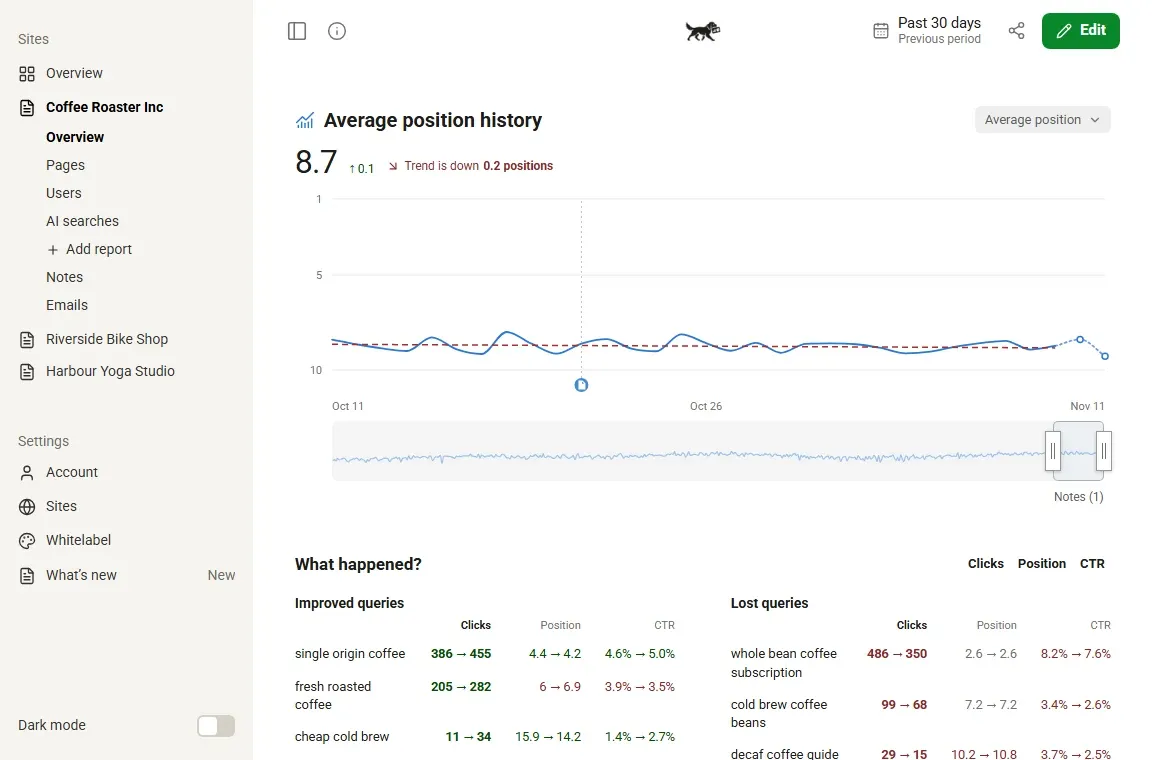
The report uses the same website data as its Overview. Starred queries and query tags belong to the website and appear in its other reports. Table exports belong to the table from which they are downloaded.