
Create the report
- Under a website, choose Add report → From a template → Rank tracker.
- Give the report a name.
- Press Add your first module to add its content.
What it starts with
A newly added report starts with the title only. Its default background is white, as in the other report templates. You can change the background in the report’s colour settings. The Rank tracker template’s KPI choices take effect when you add KPIs.
| Add | Purpose |
|---|---|
| KPIs | Starts with Position changes, Avg. position, Clicks and First positions |
| Search queries | Inspect positions and maintain a watchlist |
| History | Follow the selected metric over time |
Reports saved earlier keep their own arrangement.
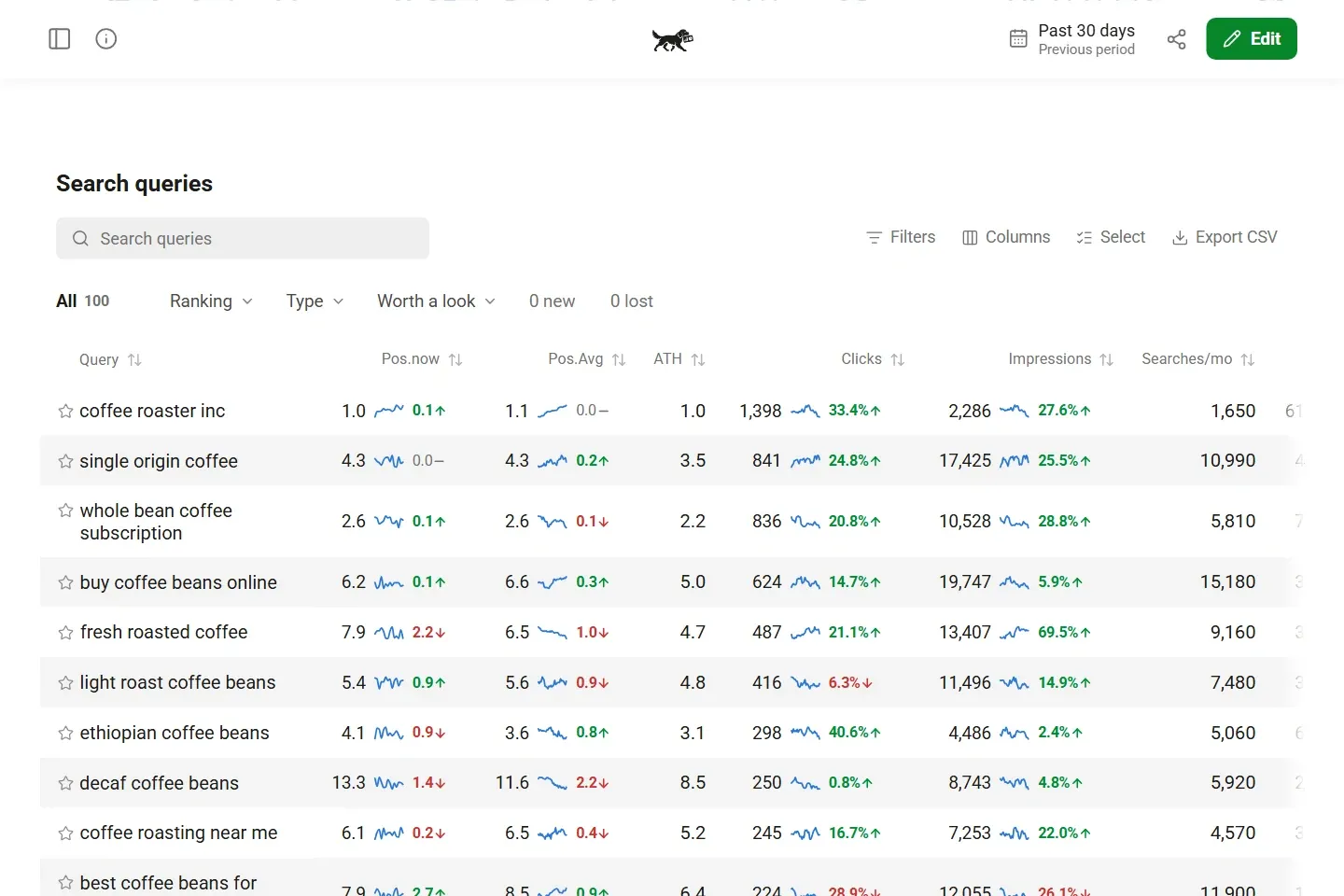
Follow the queries that matter
- Set dates and a comparison.
- Choose a Ranking band above Search queries. It uses the latest daily Pos.now.
- Compare Pos.now with Pos.Avg, the selected period’s average.
- Press the star beside a query.
- Open Starred next to All and verify the query is present.
- Press its metric to inspect history, or Export CSV to download matching rows.
ATH is the best position in stored history. A query’s latest observed day may be outside the selected period. None of these is a live Google rank check.
The watchlist and tags belong to the website, so another report of that site sees them too.